Introduction to AWS EC2 Instances

Greetings! 👋 I'm Priyadarshi Ranjan, a dedicated DevOps Engineer embarking on an enriching journey. Join me as I delve into the dynamic realms of cloud computing and DevOps through insightful blogs and updates. 🛠️ My focus? Harnessing AWS services, optimizing CI/CD pipelines, and mastering infrastructure as code. Whether you're peers, interns, or curious learners, let's thrive together in the vibrant DevOps ecosystem. 🌐 Connect with me for engaging discussions, shared insights, and mutual growth opportunities. Let's embrace the learning curve and excel in the dynamic realm of AWS and DevOps technology!
In the world of cloud computing, Amazon Web Services (AWS) is a leading player, offering various services that help businesses scale efficiently and reduce costs. One of the core services of AWS is EC2 (Elastic Compute Cloud), which allows you to run virtual servers, called EC2 instances, on AWS's cloud infrastructure.
In simple terms, EC2 lets you rent virtual computers that you can use to run your applications, just like you would on a physical machine. You don't have to worry about buying, maintaining, or upgrading hardware. AWS takes care of that while you focus on your application.
What is an EC2 Instance?
An EC2 instance is a virtual machine running on AWS's cloud infrastructure. It allows you to run applications and services just like on a physical server, but with the added flexibility and scalability of the cloud.

Key Features of EC2
Scalability: EC2 lets you easily scale up (increase resources) or scale down (reduce resources) based on the needs of your application. This means you don’t have to over-provision or under-provision your hardware; EC2 will adjust according to the traffic or workload.
Pay-as-you-go: With EC2, you only pay for what you use. If you run an instance for a few hours or days, you’ll only be charged for that specific duration. No upfront investment is required, making it highly cost-effective, especially for startups and small businesses.
Customizable: EC2 offers a variety of instance types to suit different needs, such as compute, memory, or storage optimization. You can choose an instance type that best fits your application requirements.
High Availability: EC2 instances can be run across multiple regions and availability zones, ensuring your application is highly available and resilient to failures.
Security: AWS provides several security features, such as Security Groups, IAM Roles, and Key Pairs, to control who has access to your instances and data.
Real-Life Example: How a Small Business Uses EC2
Let’s say you run a small e-commerce business that sells handmade products. Initially, you might host your website on a shared server or local infrastructure. As your business grows, you experience more traffic during peak shopping seasons, and your current infrastructure can't handle the load. This results in slow page loads, or worse, downtime, leading to a poor customer experience.
Here’s how EC2 can help:
Step 1: Choose an Instance Type
You can launch a t2.micro EC2 instance, which is a low-cost virtual server that’s perfect for small websites or applications. This instance type is part of AWS's free tier, meaning you can use it at no charge for 12 months, making it a great option for startups.
Step 2: Auto Scaling for Peak Traffic
Let’s say you have a big sale coming up, and you expect a lot of traffic. You can set up Auto Scaling with EC2, which automatically adjusts the number of instances running based on the traffic. For example, during the sale, Auto Scaling can launch more instances to handle the increased traffic, and once the sale is over, it can reduce the number of instances to save on costs.
Step 3: Security
AWS EC2 provides a secure environment. You can configure Security Groups (firewalls) to allow only certain types of traffic, such as HTTPS for secure web connections. You can also use IAM Roles to control who in your organization can access the EC2 instance, ensuring that only authorized users can make changes.
Step 4: Backup and Recovery
In case of unexpected failures, EC2 instances can be configured with automatic backups using Amazon Elastic Block Store (EBS) snapshots. This means you can quickly recover your data if something goes wrong.
As your business grows, you can move from a t2.micro instance to a larger, more powerful instance like t3.medium or m5.large to handle the increased traffic and processing needs.
How to Launch an EC2 Instance: Step-by-Step Guide
Amazon Web Services (AWS) provides a robust and flexible cloud computing platform, and one of its fundamental services is Amazon Elastic Compute Cloud (EC2). EC2 allows users to easily launch and manage virtual servers in the cloud.
Step 1: Sign in to the AWS Management Console
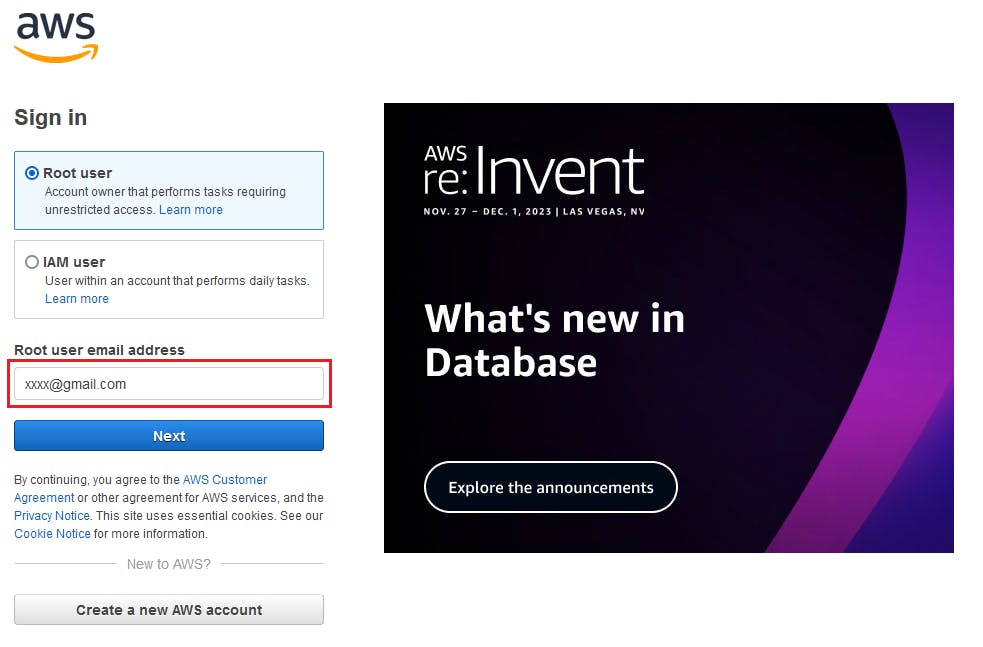
To get started, sign in to the AWS Management Console using your AWS account credentials. If you don't have an AWS account, you can create one by clicking on this link: Sign Up, or click Sign-In if you already have one. Enter your email address and click Next
Step 2: Select the Appropriate Location
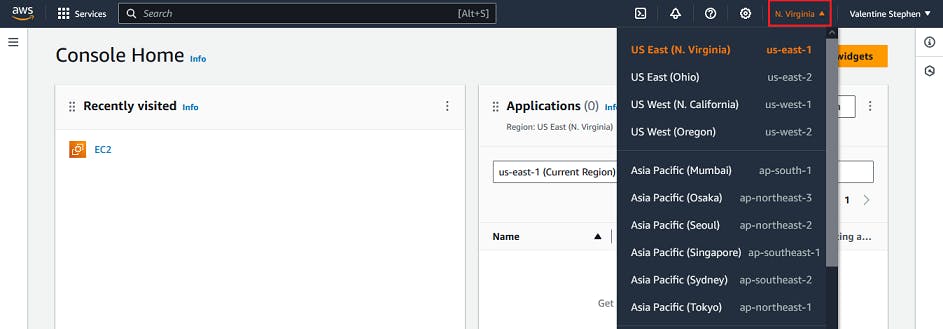
Selecting the closest location or region to you will help reduce latency and increase speed when trying to access the server (EC2 instance). Select any location of your choice, as shown below.
Step 3: Navigate to the EC2 Dashboard
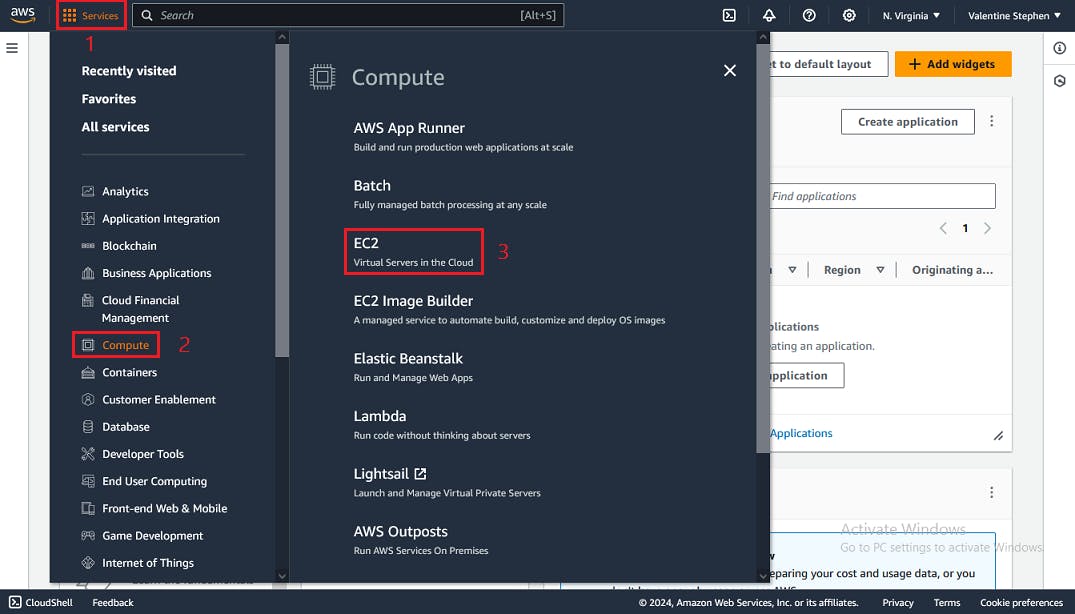
Once you are logged in, navigate to the EC2 Dashboard by selecting "Services" in the top left corner and clicking on "EC2" under the Compute section.
Step 4: Launch an Instance
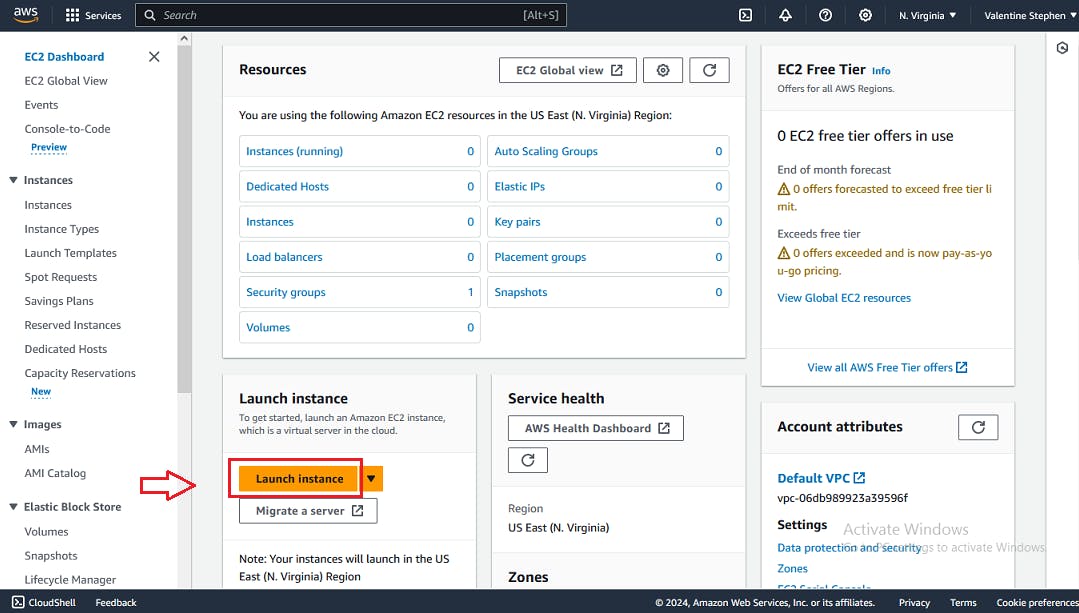
On the EC2 Dashboard, click the "Launch Instance" button to initiate the process of creating a new virtual server.
Step 5: Choose an Amazon Machine Image (AMI)
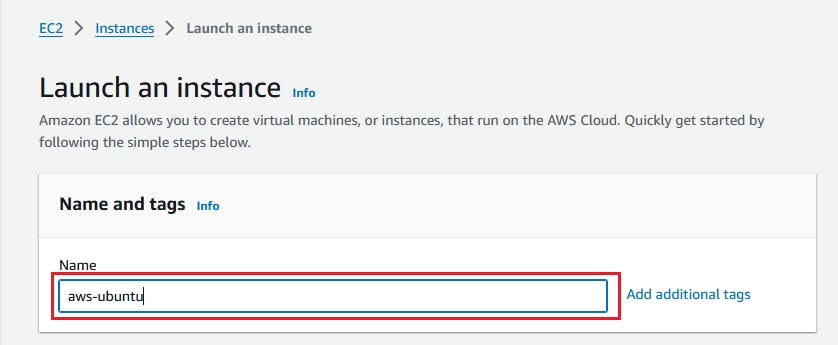
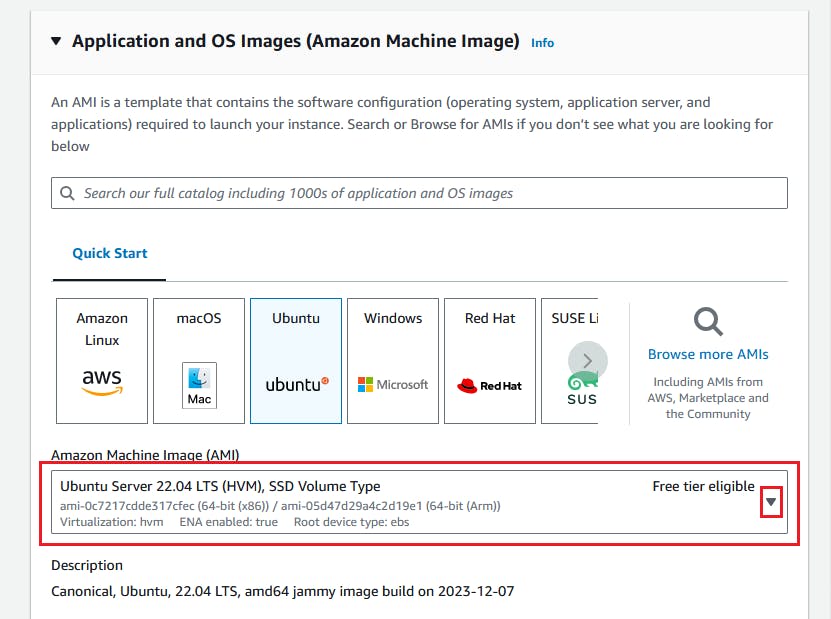
First, you need to provide a unique name for your new EC2 instance; in my case, I typed aws-ubuntu. In the "Choose an Amazon Machine Image (AMI)" step, you'll need to select an AMI that suits your needs. An AMI is a pre-configured template that includes the operating system and other software. AWS provides a variety of AMIs for different purposes; I selected Ubuntu Server 22.04 for this demo.
Step 5: Choose an Instance Type
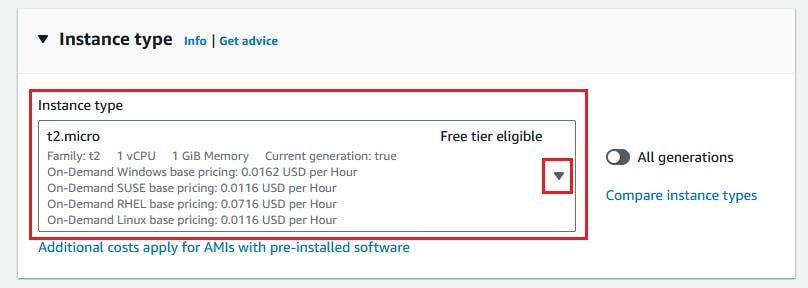
Next, you'll need to choose an instance type based on your performance and resource requirements. Instance types vary in terms of CPU, memory, storage, and networking capacity. Select the instance type that aligns with your application's needs. Here I am using t2.micro, which is free.
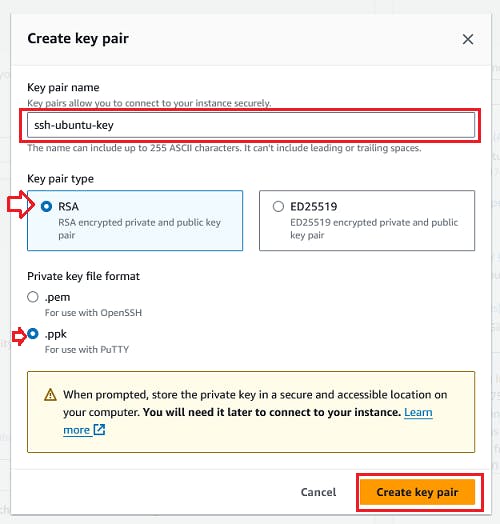
Step 6: Create Key pair for logging into EC2 Instance
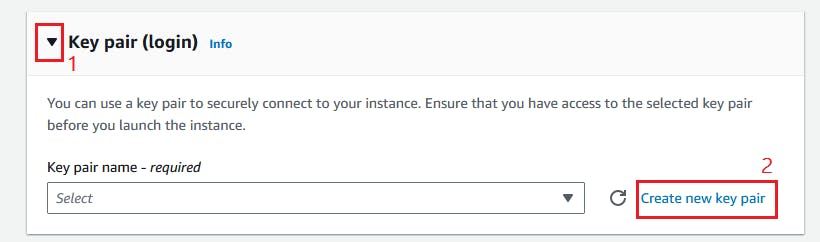
Expand the key pair section by clicking on the small triangular icon on the left, then select Create New Key Pair as shown below.
When the new dialog box pops open, give your key pair a name and select other options as indicated in the diagram below.
Step 7: Configure Security Group
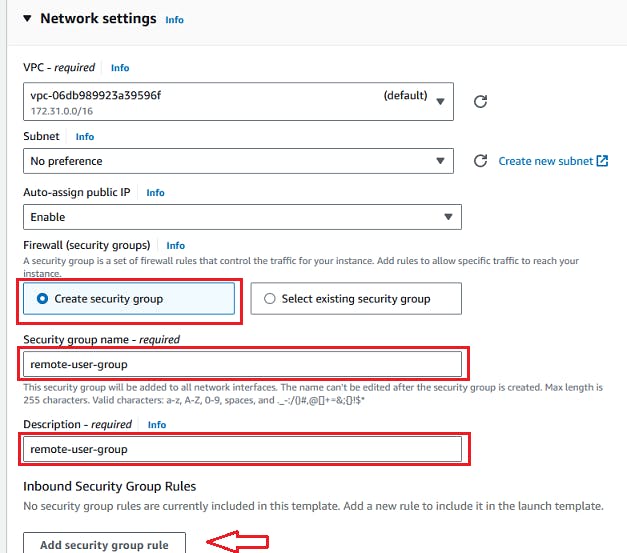
Expand the Network Setting section to carry out the following step. In the "Configure Security Group" step, you'll need to define the rules that control incoming and outgoing traffic to your instance. Create a new security group or select an existing one to specify the necessary rules. You must provide a name and description for the new security group, and then in Inbound Security Group Rule section, select Add Security Group Rule.
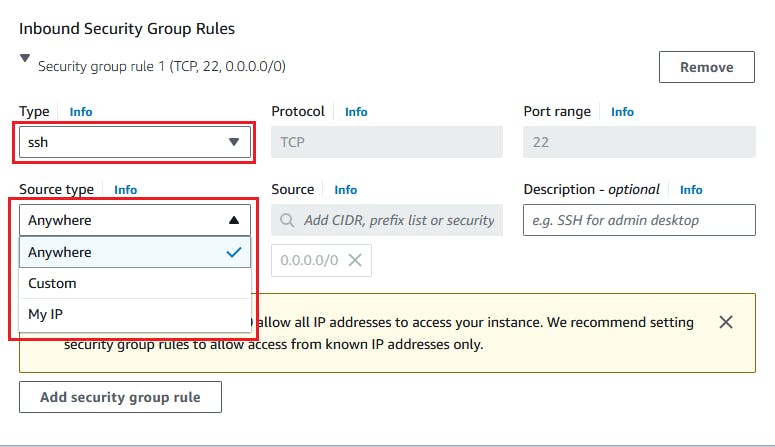
Next, select ssh as the type and Anywhere (this option is not the best for security reasons; it will allow you to connect to the server from any ip address) as Source type.
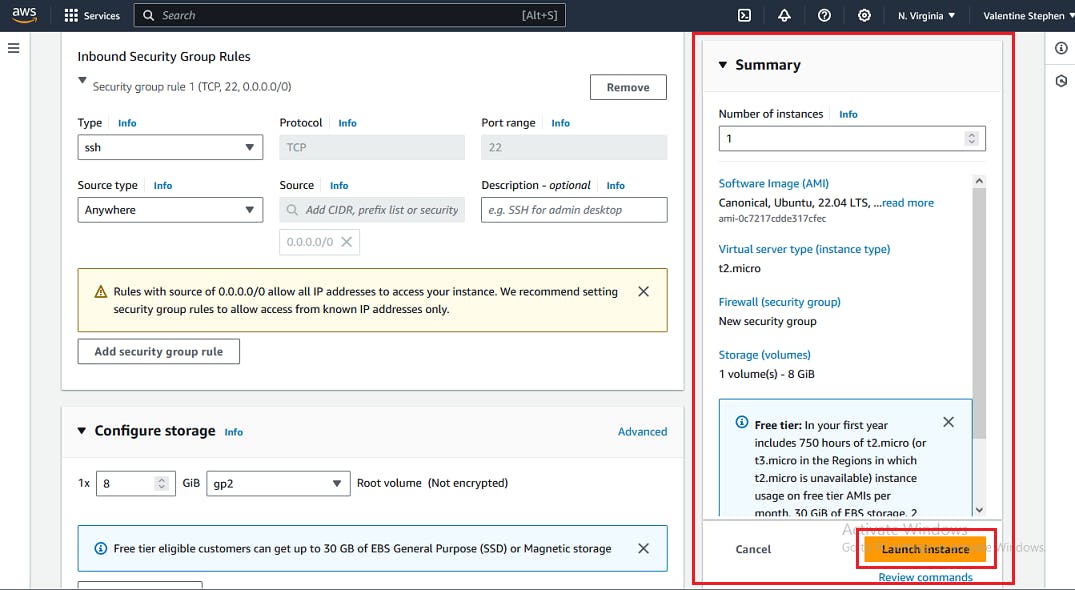
Step 8: Review and Launch
Before launching the instance, review your configuration settings to ensure everything is correct. Click "Launch" when you are ready.
Common EC2 Instance Types and Use Cases
AWS offers a variety of EC2 instance types to suit different workloads. Here’s a breakdown of some of the most common ones:
-
Ideal for web servers, development environments, and small databases.
Examples: t2.micro, t3.medium, m5.large.
Compute-Optimized Instances:
Best for compute-heavy tasks like batch processing, high-performance computing, and gaming servers.
Example: c5.large.
Memory-Optimized Instances:
Used for memory-intensive applications like big data analytics, in-memory databases (e.g., Redis, Memcached).
Example: r5.large.
Storage-Optimized Instances:
Designed for high disk throughput, ideal for large data processing tasks.
Example: i3.large.
GPU Instances:
Suitable for workloads that require graphics processing, such as deep learning, video rendering, or 3D visualization.
Example: p3.2xlarge.
Conclusion
AWS EC2 is a highly flexible and scalable cloud service that provides virtual machines to run various applications, from small websites to large-scale enterprise applications. Whether you’re a startup launching your first web application or a large enterprise with massive compute needs, EC2 offers an array of instance types tailored to specific use cases.
With its pay-as-you-go pricing, built-in security features, and ability to auto-scale, EC2 makes it easier than ever to manage workloads and save costs. By leveraging EC2, businesses can focus more on innovation and less on infrastructure, making it a powerful tool in the cloud computing landscape.
Connect and Follow Me on Socials Network


